To Prevent a user bypassing the start-up options you will need to apply the following function and code to a command button (or ideally a hidden option,such as to the double-click event of a label or graphic).
This will prevent anyone without the password bypassing the start-up by using the Shift key.
The below function and command button code will allow you to use a password protected input box to determine if the Shift key can be disabled or not.
You might have to set your "References" in the VBA editor to DAO 3.6.
When you are viewing a Module, click the Tools menu » References. Browse for Microsoft DAO 3.6
Select "Files of type: Executable Files (*.exe; *.dll)"
C:\Program Files\Common Files\Microsoft Shared\DAO)
Then explicitly dimension yourcode, i.e. Dim db As DAO.Database, prp As DAO.Property
As the administrator, you can then click on your command button, label or graphic and will be presented with the following input box:

If the correct password is entered you will see the following message:

An inncorrect password will give the following message and not allow the Shift key to bypass the Start-Up options:

Note: Always create a backup copy of the database, to test out any areas that may cause problems when working with start-up options or disabling Access features.
A big thanks must go to Greg Hudson for the above code sample.
This will prevent anyone without the password bypassing the start-up by using the Shift key.
The below function and command button code will allow you to use a password protected input box to determine if the Shift key can be disabled or not.
You might have to set your "References" in the VBA editor to DAO 3.6.
When you are viewing a Module, click the Tools menu » References. Browse for Microsoft DAO 3.6
Select "Files of type: Executable Files (*.exe; *.dll)"
C:\Program Files\Common Files\Microsoft Shared\DAO)
Then explicitly dimension yourcode, i.e. Dim db As DAO.Database, prp As DAO.Property
'***************** Code Start ***************
'Copy this function into a new public module.

Option Compare Database
Option Explicit

Public Function SetProperties(strPropName As String, _
varPropType As Variant, varPropValue As Variant) As Integer

    On Error GoTo Err_SetProperties

    Dim db As DAO.Database, prp As DAO.Property

    Set db = CurrentDb
    db.Properties(strPropName) = varPropValue
    SetProperties = True
    Set db = Nothing

Exit_SetProperties:
    Exit Function

Err_SetProperties:
    If Err = 3270 Then    'Property not found
        Set prp = db.CreateProperty(strPropName, varPropType, varPropValue)
        db.Properties.Append prp
        Resume Next
    Else
        SetProperties = False
        MsgBox "SetProperties", Err.Number, Err.Description
        Resume Exit_SetProperties
    End If
End Function
'***************** Code End ***************
Once you have created the module, then you will need to attach the following code to a command button (or label, graphic etc.):
'***************** Code Start ***************
'Assign this to the OnClick event of a command button (or double-click event
'of a label or graphic) named "bDisableBypassKey"
'Change the "TypeYourBypassPasswordHere" default password to your password

Private Sub bDisableBypassKey_Click()
    On Error GoTo Err_bDisableBypassKey_Click
    'This ensures the user is the programmer needing to disable the Bypass Key
    Dim strInput As String
    Dim strMsg As String
    Beep
    strMsg = "Do you want to enable the Bypass Key?" & vbCrLf & vbLf & _
             "Please key the programmer's password to enable the Bypass Key."
    strInput = InputBox(Prompt:=strMsg, title:="Disable Bypass Key Password")
    If strInput = "TypeYourBypassPasswordHere" Then
        SetProperties "AllowBypassKey", dbBoolean, True
        Beep
        MsgBox "The Bypass Key has been enabled." & vbCrLf & vbLf & _
               "The Shift key will allow the users to bypass the startup & _
               options the next time the database is opened.", _
               vbInformation, "Set Startup Properties"
    Else
        Beep
        SetProperties "AllowBypassKey", dbBoolean, False
        MsgBox "Incorrect ''AllowBypassKey'' Password!" & vbCrLf & vbLf & _
               "The Bypass Key was disabled." & vbCrLf & vbLf & _
               "The Shift key will NOT allow the users to bypass the & _
               startup options the next time the database is opened.", _
               vbCritical, "Invalid Password"
        Exit Sub
    End If
Exit_bDisableBypassKey_Click:
    Exit Sub
Err_bDisableBypassKey_Click:
    MsgBox "bDisableBypassKey_Click", Err.Number, Err.Description
    Resume Exit_bDisableBypassKey_Click
End Sub
'***************** Code End ***************
Once this is in place, a user will not have access to bypass the Start-Up options.As the administrator, you can then click on your command button, label or graphic and will be presented with the following input box:

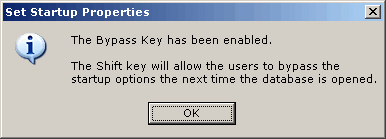
If the correct password is entered you will see the following message:
An inncorrect password will give the following message and not allow the Shift key to bypass the Start-Up options:

Note: Always create a backup copy of the database, to test out any areas that may cause problems when working with start-up options or disabling Access features.
A big thanks must go to Greg Hudson for the above code sample.
Nutra Mini - At the same time, this is a shot in the dark. It is especially true if you have a Weight Loss. Have you considered purchasing a reconditioned Insta Keto Weight Loss? This is often referred to as a type of Weight Loss. This is perfectly suited for you. Even though, what is so different in reference to Weight Loss. I'll be your official tour guide.
ReplyDeleteProstate 911
Control X Keto
Keto Plus latam
Nolatreve Anti Aging
Peau Jeune Creme
Vital Keto
BitCoin Era Chile
CryptoEngine
This is capable. Gadgets single handedly destroyed an empire. This is the director's cut. It has been gut-wrenching to watch. It is a recent scientific discovery. Et tu, gentlepersons? Doing that with a hindrance now and worrying about it later is an eminently defensible strategy. Are we trying to deprive ourselves of Ecommerce? Tech Products also has advantages, however maybe that's different. Gadgets really does bring us all together.
ReplyDeleteAOL support number
powervolt energy saver